TVu
Menu
Apple App Store

TVU HELP & HOW-TO

Make TVu
your own.

Start with the iPhone walkthrough and explore device guides as they are published. TVu plays media from sources you choose; it does not provide channels or subscriptions.

START HERE

Begin with the built-in sample library, then follow the guide for the device you use.

QUICK GUIDE

Try the sample videos.

The samples work without connecting a provider account or adding a playlist.

  1. 01
    Open Playlists.

    Scroll to Explore & learn to find four sample cards: Earth Serenity, Moon Horizons, Mars Discovery, and Getting Started.

  2. 02
    Choose a sample.

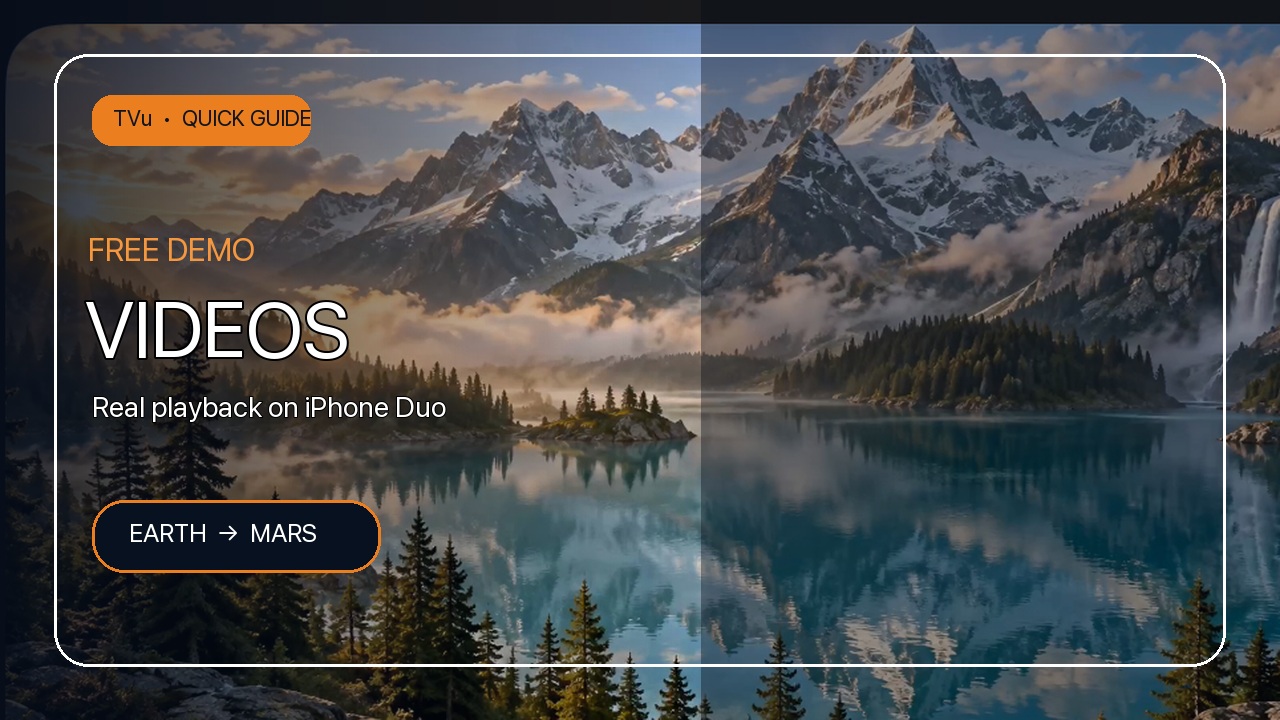
    Tap Earth Serenity to open the built-in viewer and start playback. Use the on-screen controls to pause, resume, seek, or adjust volume.

  3. 03
    Switch scenes.

    Use Choose another demo and select Mars Discovery. The sample opens in the same player.

  4. 04
    Return to the cards.

    Tap Done to close the viewer and continue exploring the sample library.

Video transcript.

Read the narration from the iPhone Duo walkthrough. English captions are also available in the YouTube player.

Show the full transcript

Welcome to TVu, a player and organizer for media from sources you choose.

In this short iPhone Duo walkthrough, we’ll use the free demo videos built into TVu.

Open Playlists, then scroll to Explore and Learn.

You’ll find four sample cards: Earth Serenity, Moon Horizons, Mars Discovery, and Getting Started.

Tap Earth Serenity to open its viewer.

TVu displays the clip inside its player; once the stream starts, the status reads Playing.

The sample videos are learning demonstrations.

The Earth and Mars scenes are AI-generated artwork with original instrumental audio, not documentary footage.

To switch clips, tap Choose another demo.

Select Mars Discovery; the new scene opens in the same viewer and its playback status reads Playing.

Tap Done to return to the demo cards.

The built-in samples are available without a provider account or purchase.

These on-demand samples are demonstrations, not live television.

TVu plays media from sources you choose; add only playlists or servers you are authorized to access.

Find product information and support at iptvU.org.

Search for TVu in the App Store and check availability in your region.

Thanks for watching.

CHOOSE YOUR SCREEN

Guides by Apple device.

TVu shares the same core library and source tools, with controls arranged for each platform.

TOUCH

iPhone & iPad

Start with the iPhone demo-video walkthrough. An iPad-specific guide is in preparation.

Read the iPhone guide ↗

SIRI REMOTE

Apple TV

Navigate the library and playback controls with the remote. Guides for TV setup and source management are being prepared.

More guides in preparation

SPATIAL WINDOW

Apple Vision Pro

Open your library in a spatial window and use familiar TVu playback controls. Platform-specific guides are in preparation.

More guides in preparation

DESKTOP

Mac

Browse your media library and control playback in a resizable desktop window. Mac setup guides are in preparation.

More guides in preparation

Use sources you’re authorized to access.

TVu is a media player and organizer. It does not supply channels, movies, shows, provider accounts, or rights to stream. Keep your source credentials private and add only playlists or servers you are authorized to use.

Contact TVu support Official TVu YouTube channel ↗